> For the complete documentation index, see [llms.txt](https://docs.archpublic.com/llms.txt). Markdown versions of documentation pages are available by appending `.md` to page URLs; this page is available as [Markdown](https://docs.archpublic.com/crypto/arch-public-algorithm-setup-guide-start-here.md).
# Arch Public Algorithm Setup Guide (Start Here)
## Set up a Supported Exchange Account
Arch Public Algorithms require you to have your own exchange account to function. \
We currently support Tastytrade, Coinbase, Gemini, Kraken, OKX, and Robinhood.
Once established, you will need to fund your account
## Connecting To Your Exchange Account
1. In order to connect your exchange Account to Arch Public's suite of algorithms, you will need to create an Oauth connection or API key in your exchange account and copy/paste the information into the exchange section in your Arch Public Client Portal.
***
### Connect To Coinbase
Two ways to connect Coinbase: OAuth, where you sign in with your Coinbase login (preferred), or an API key you create in Coinbase and paste into the dashboard. Pick one tab.
{% tabs %}
{% tab title="OAuth (preferred)" %}
**Step 1.** In your Arch Public dashboard, open Exchanges and click Coinbase under Add New Connection.
**Step 2.** Sign in to Coinbase if asked. On the “Allow Third Party: Arch Public Inc to access Coinbase” screen, tick “Allow access to all portfolio and wallet accounts” and click Continue.
**Step 3.** You’re returned to Exchanges. A “Coinbase connected” notice appears and the account is listed under Connected Accounts. It can take a few seconds. That’s the connection done.
{% endtab %}
{% tab title="API key" %}
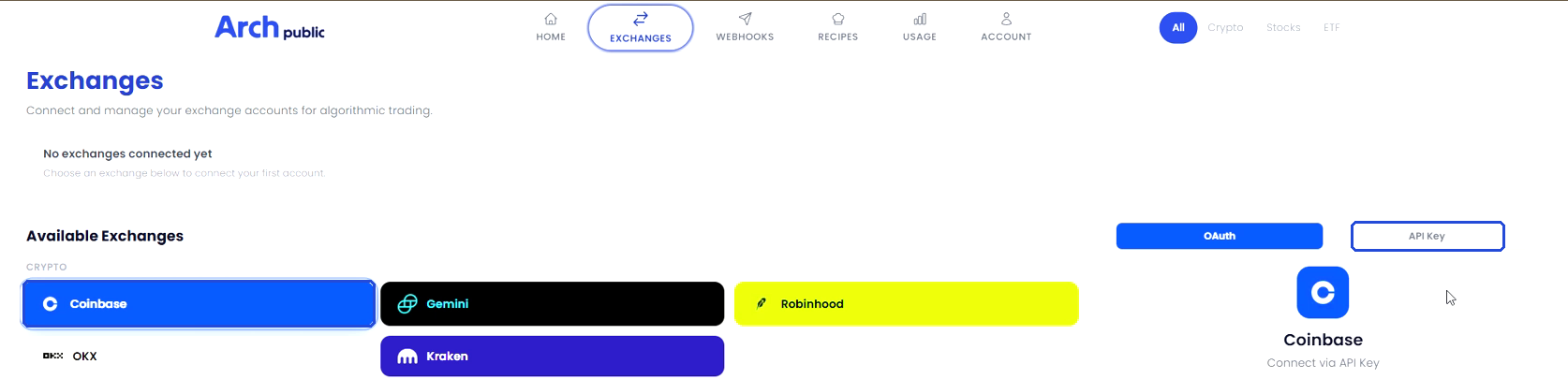
**Step 1.** In your Arch Public dashboard, open Exchanges, click Coinbase, and switch the panel on the right to API Key.
**Step 2.** In Coinbase, click your profile icon at the top right and choose Settings.
**Step 3.** On the Settings page, scroll to API (API keys, OAuth2 apps) and open it.
**Step 4.** Click Create API key.
**Step 5.** Give the key a name. Under Portfolio, pick the portfolio you want the algorithms to trade in (the example shows Primary). Tick View and Trade only; leave Transfer and Receive unticked. Either signature algorithm works (Coinbase recommends Ed25519). Click Create & download, and complete two-factor authentication if Coinbase asks.
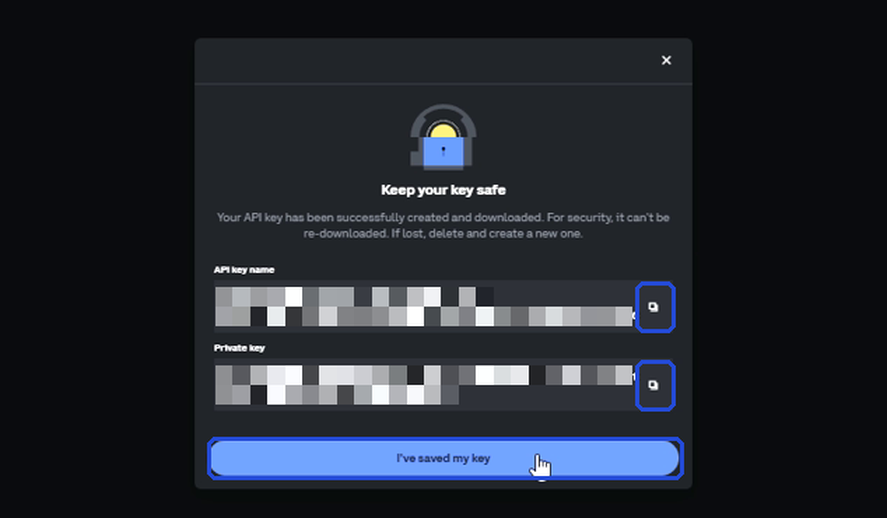
**Step 6.** Coinbase then shows your API key name and private key under a “Keep your key safe” message. Use the copy button next to each one, and only those, so you get the entire key; never select it by hand or leave any part out. The private key is shown once. If you lose it, delete the key and create a new one.
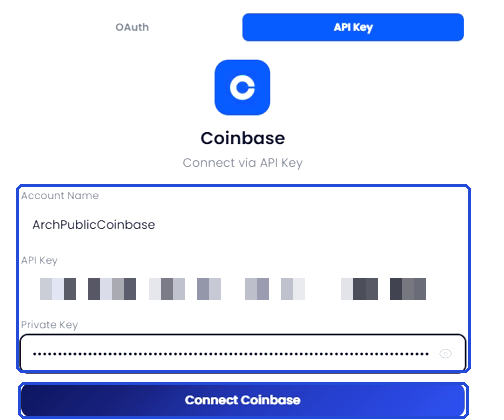
**Step 7.** Back in the Arch Public dashboard, enter an account name, paste the API key and the private key, and click Connect Coinbase.
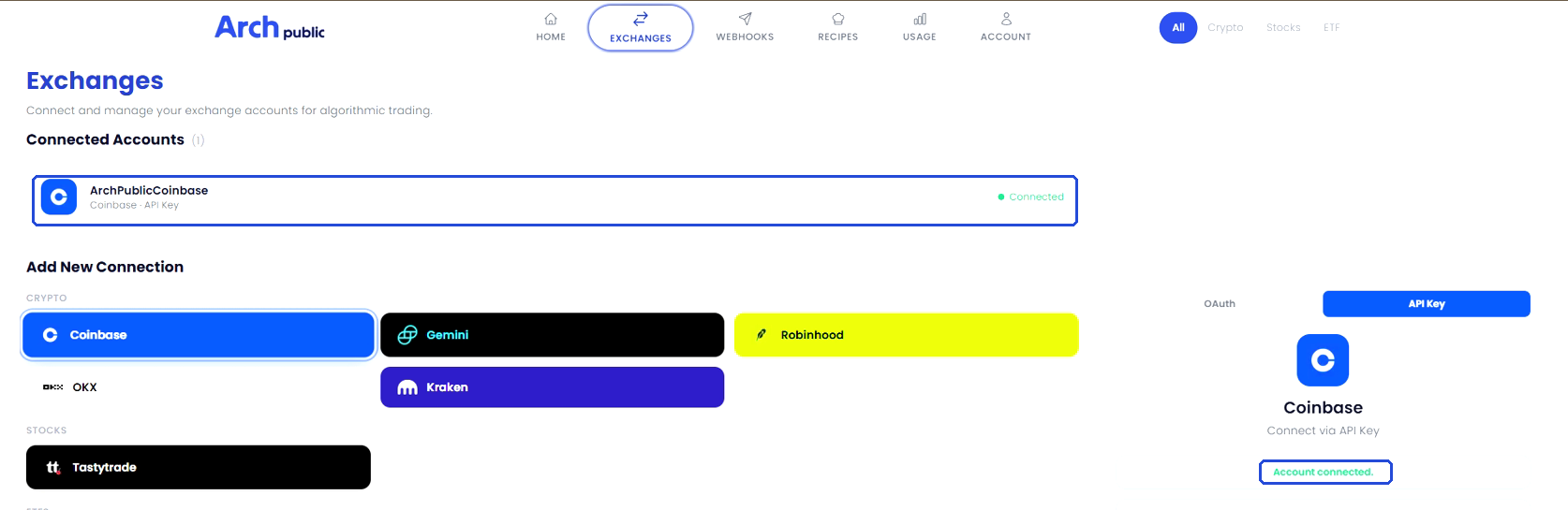
**Step 8.** The account appears under Connected Accounts as Connected, and the panel confirms “Account connected.”
{% endtab %}
{% endtabs %}
***
### Connect To Gemini
Two ways to connect Gemini: OAuth, where you sign in with your Gemini login (preferred), or an API key you create in Gemini and paste into the dashboard. Pick one tab.
{% tabs %}
{% tab title="OAuth (preferred)" %}
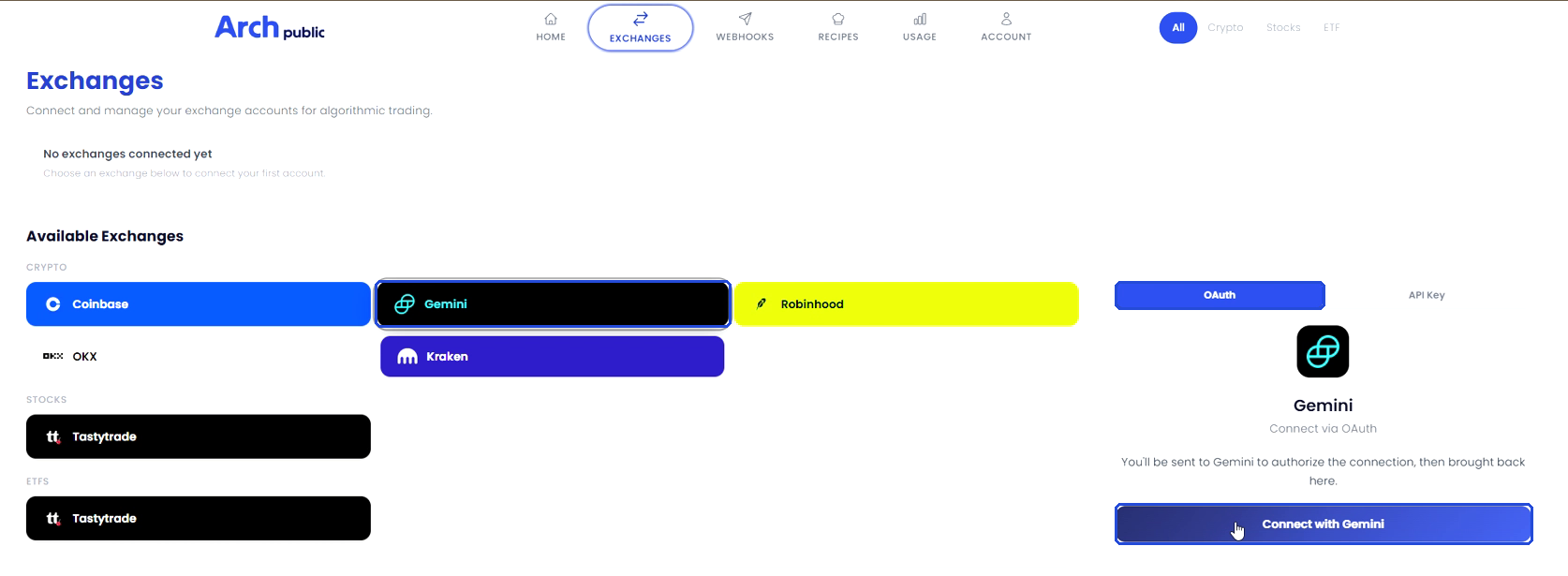
**Step 1.** In your Arch Public dashboard, open Exchanges, click Gemini, and click Connect with Gemini. You’ll be sent to Gemini and brought back when you’re done.
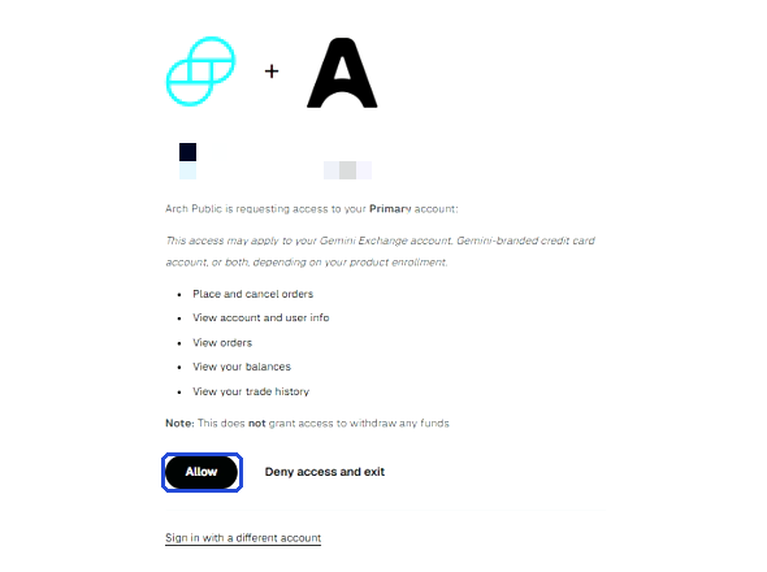
**Step 2.** Sign in to Gemini if asked and complete two-factor authentication (passkey or authenticator app). On the authorization page, check that Arch Public is requesting access to the account you want to trade in (the example shows Primary), then click Allow. The permissions cover placing and cancelling orders and viewing your account, orders, balances and trade history; it can’t withdraw funds.
**Step 3.** You’re returned to Exchanges. A “Gemini connected” notice appears and the account is listed under Connected Accounts. That’s the connection done.
{% endtab %}
{% tab title="API key" %}
**Step 1.** In your Arch Public dashboard, open Exchanges, click Gemini, and switch the panel on the right to API Key.
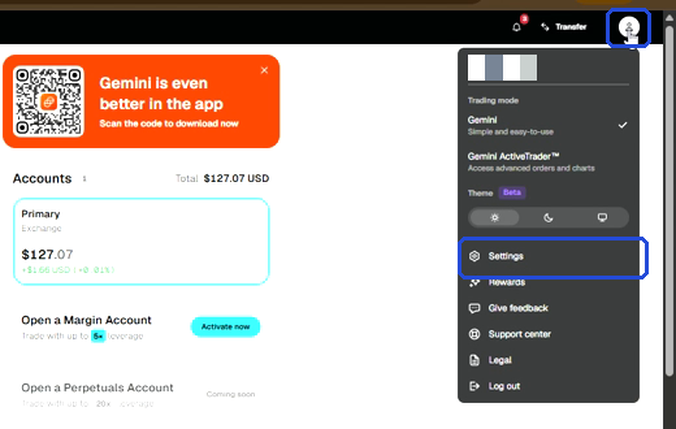
**Step 2.** In Gemini, click your profile icon at the top right and choose Settings.
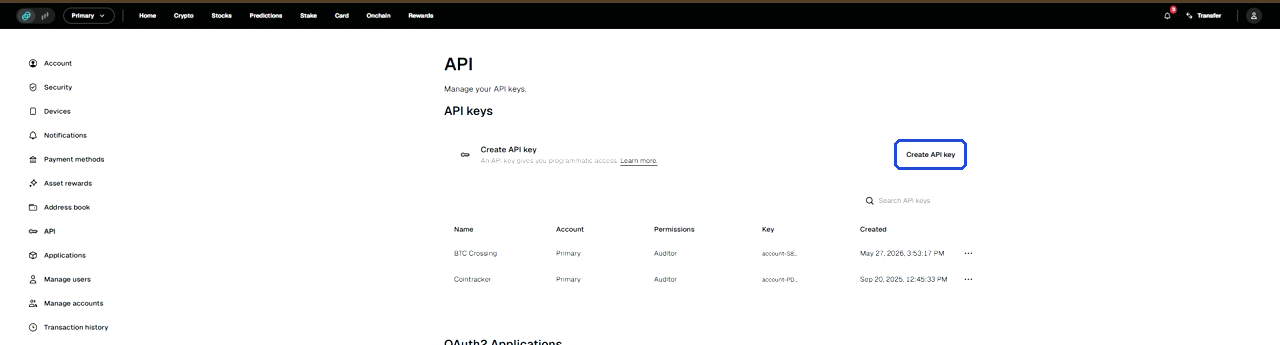
**Step 3.** In the Settings menu on the left, click API.
**Step 4.** Click Create API key.
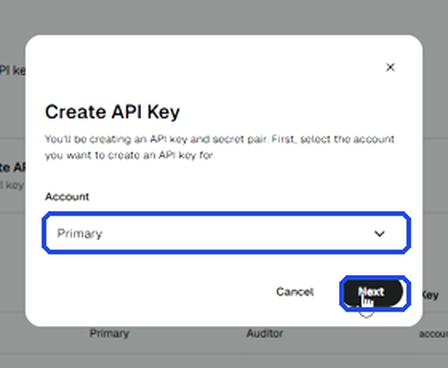
**Step 5.** Pick the account you want the algorithms to trade in (the example shows Primary) and click Next.
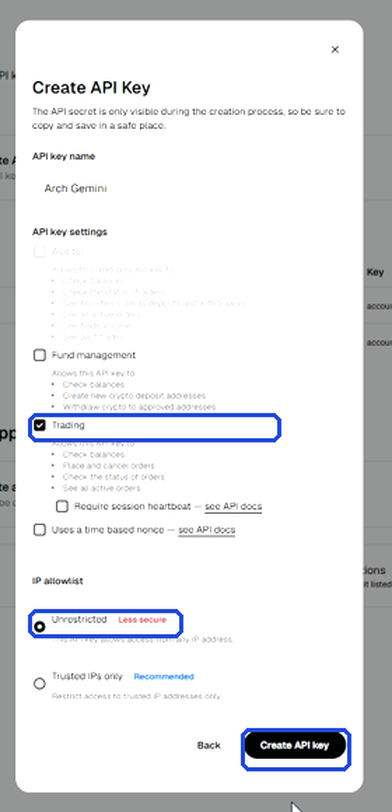
**Step 6.** Give the key a name. Under API key settings tick Trading only; leave Auditor and Fund management unticked. Under IP allowlist choose Unrestricted. Click Create API key.
**Step 7.** Gemini shows your API key and API secret once. Copy each one exactly as shown, in full: the API key starts with “account-” and that prefix is part of the key, so keep it. Never retype either value or leave any part out. Save them somewhere safe, then tick the acknowledgement box and close the dialog. If you lose the secret, delete the key and create a new one.
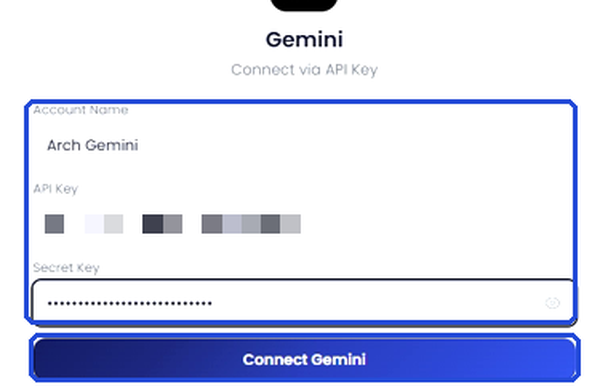
**Step 8.** Back in the Arch Public dashboard, enter an account name, paste the API key (including “account-”) and the secret key unchanged, and click Connect Gemini.
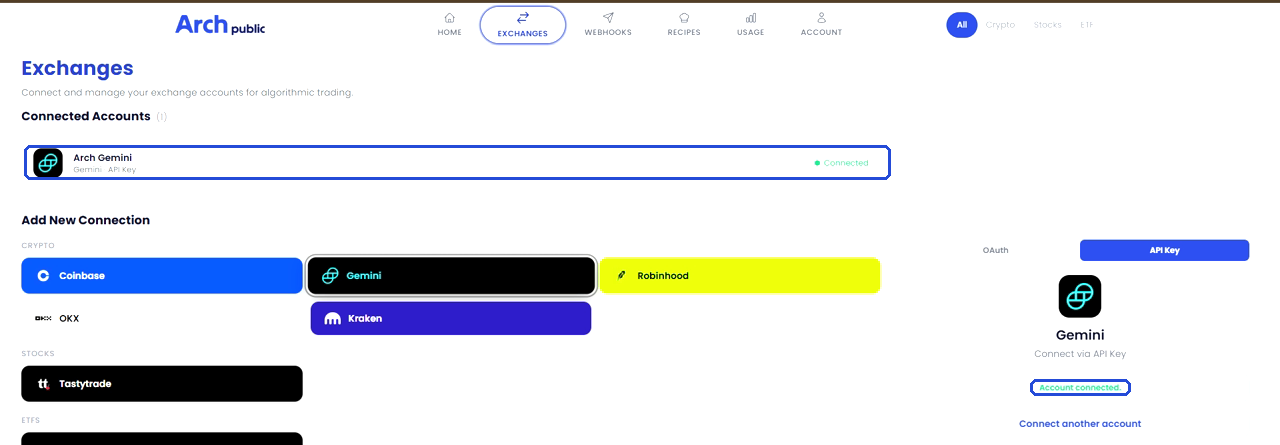
**Step 9.** The account appears under Connected Accounts as Connected, and the panel confirms “Account connected.”
{% endtab %}
{% endtabs %}
***
### Connect To Kraken
{% hint style="warning" %}
IMPORTANT\
\
Kraken Staking Requirements:
Kraken Auto Earn may remain enabled. However, assets that are manually Flex Staked or Bonded Staked cannot be traded by Arch Public algorithms.
If a cryptocurrency is manually staked (Flex or Bonded), it must be unstaked before the algorithm can execute trades. Failing to do so may result in missed trades. You can stake a portion of a particular cryptocurrency and still trade with the unstaked portion.
{% endhint %}
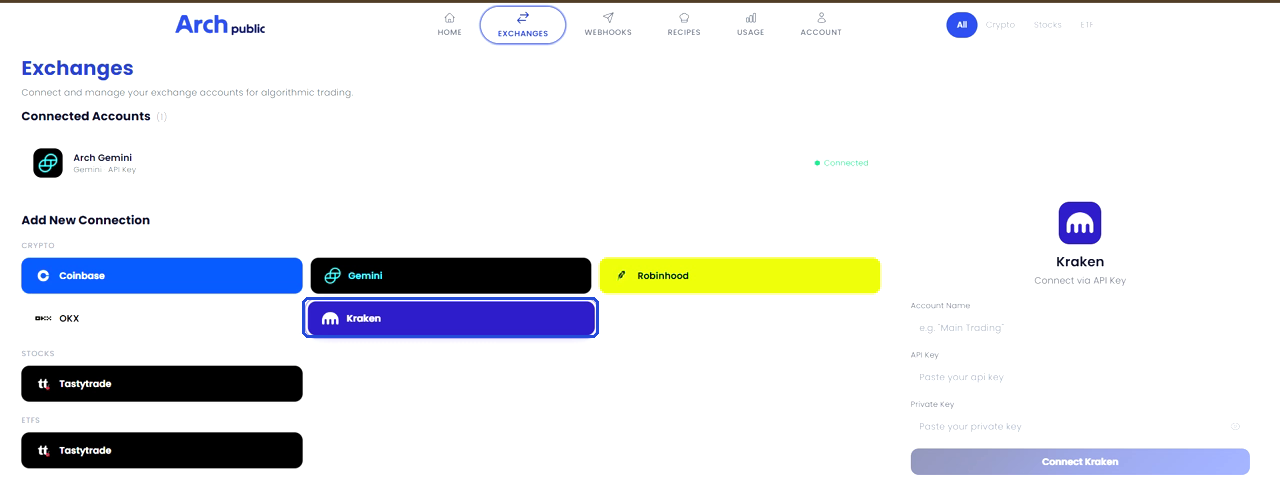
**Step 1.** In your Arch Public dashboard, open Exchanges and click Kraken. Kraken connects with an API key.
**Step 2.** In Kraken, click your initials at the top right and choose Account.
**Step 3.** In the settings menu on the left, click Connections & API.
**Step 4.** Under Spot trading API, click Create API key.
**Step 5.** Give the key a name. Under Permissions tick Query and Earn under Funds permissions, all four items under Orders and trades, and Query ledger entries and Export data under Data. Leave Deposit and Withdraw unticked and leave every option below (WebSocket, IP restriction, expiration, dates, nonce) off. Click Generate key.
**Step 6.** Kraken shows your API key and private key once. Use the copy button next to each one, and only those, so you get the entire value; never select it by hand or leave any part out. Save them somewhere safe before you close the dialog. If you lose them, delete the key and create a new one.
**Step 7.** Back in the Arch Public dashboard, enter an account name, paste the API key and the private key unchanged, and click Connect Kraken.
**Step 8.** The account appears under Connected Accounts as Connected, and the panel confirms “Account connected.”
***
### Connect To Robinhood
{% hint style="info" %}
NOTE: To access available assets through Robinhood on TradingView, you must select BITSTAMP as the exchange. Robinhood recently acquired Bitstamp.
{% endhint %}
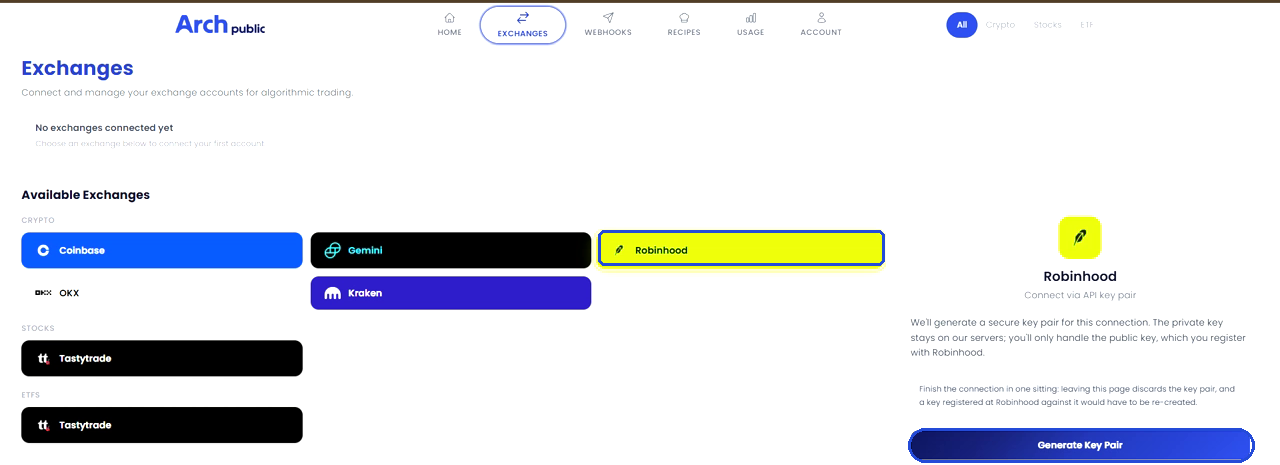
Robinhood works the other way round from the other exchanges: the Arch Public dashboard generates a key pair, you register the public key at Robinhood, and Robinhood gives you back an API key to paste into the dashboard. The private key never leaves our servers.
{% hint style="info" %}
**Fee tiers.** When you create the key at Robinhood you choose whether orders are placed with fee tiers or without fee tiers. Either works with Arch Public; they use different order routing and fee structures, and which one suits you is your call. For the differences, see [Robinhood’s crypto API documentation](https://robinhood.com/us/en/support/articles/crypto-api/).
{% endhint %}
**Step 1.** In your Arch Public dashboard, open Exchanges, click Robinhood, and click Generate Key Pair. Finish the connection in one sitting: leaving the page discards the key pair, and a key registered at Robinhood against it would have to be re-created.
**Step 2.** Under “1. Copy your public key”, click Copy. Keep this tab open; you’ll come back to it.
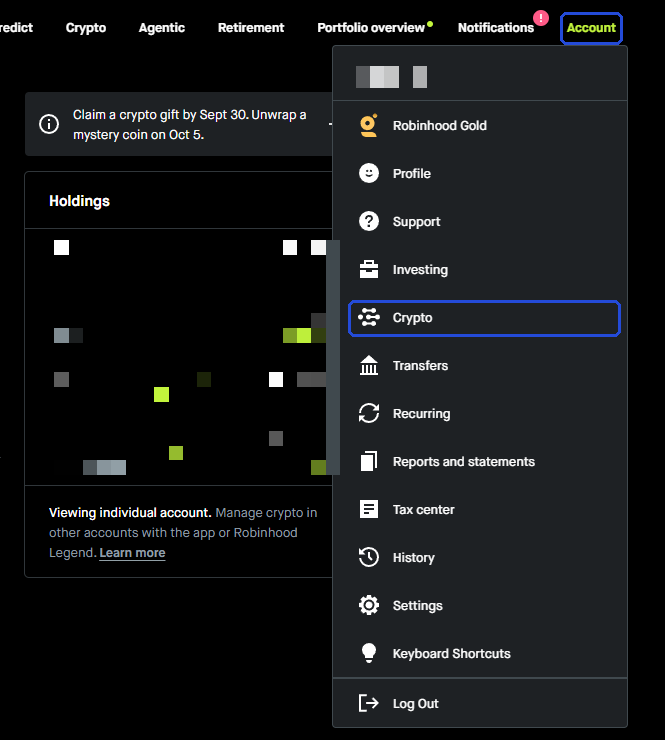
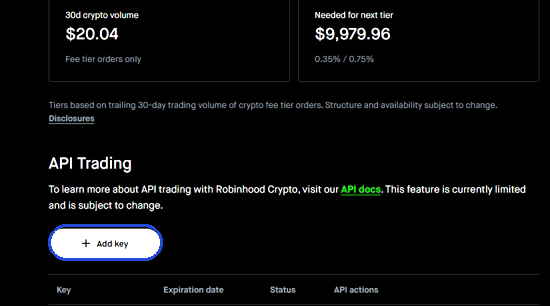
**Step 3.** Click the “Robinhood’s crypto API settings” link under “2. Register it at Robinhood”. It opens the right page in a new tab (log in if asked). If you’d rather get there yourself: on robinhood.com, open the Account menu at the top right and choose Crypto, then scroll down to API Trading.
Under API Trading, click Add key.
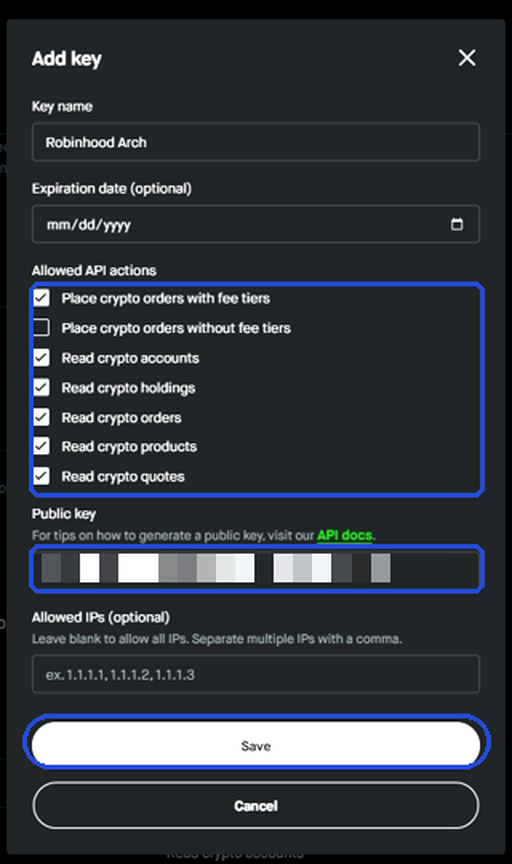
**Step 4.** Give the key a name. Under Allowed API actions, tick either “Place crypto orders with fee tiers” or “Place crypto orders without fee tiers”. Either works with Arch Public and which one you use is your call; Robinhood explains the two fee types in its [crypto API article](https://robinhood.com/us/en/support/articles/crypto-api/). Then tick all five Read options. Paste the public key from step 2 into the Public key field. Leave the expiration date and allowed IPs blank. Click Save.
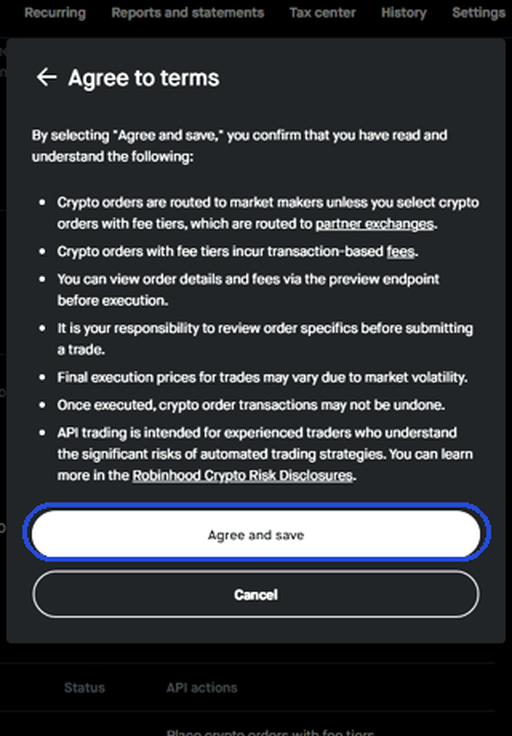
**Step 5.** Read Robinhood’s terms and click Agree and save. Robinhood may ask you to approve the new key in its mobile app or by text.
**Step 6.** Back under API Trading, click the new key’s ID in the list and click Copy key.
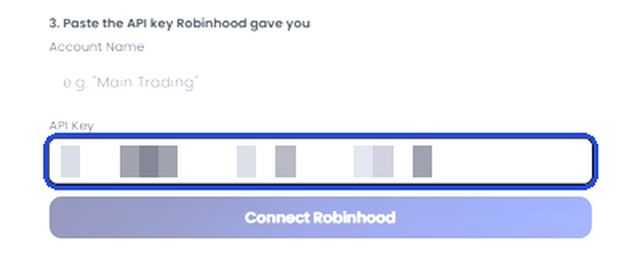
**Step 7.** Return to the Arch Public tab. Under “3. Paste the API key Robinhood gave you”, click the API Key field and paste the key exactly as copied. It starts with “rh-api-”; do not leave any of it out.
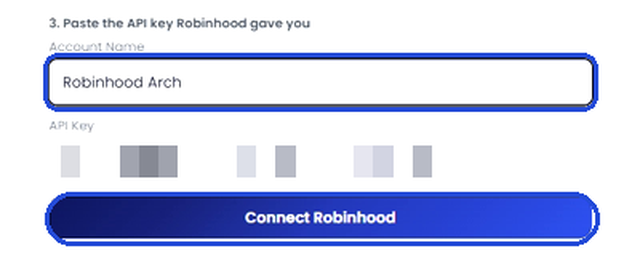
**Step 8.** Enter an account name (anything that helps you recognise this connection), then click Connect Robinhood.
**Step 9.** The account appears under Connected Accounts as Connected, and the panel confirms “Account connected.”
***
## Set up a TradingView Account
1. Set up a [TradingView account](https://www.tradingview.com/). **You will need an Essential Plan at minimum.**
## Set up TradingView 2 Factor Authentication
Once you have created your account, click the account icon and find Profile Settings
Click "Set 2-factor authentication". If you have not already subscribed to a paid plan, TradingView will prompt you to do so. DO NOT sign up for a free 30-day trial as your alerts wont work properly.
Select your preferred 2 Factor Authentication option using an authentication app or your phone number. In this example, we are using an authentication app.
2 Factor Authentication setup is complete when you see a "Disable" button next to your chosen 2FA method. If you do not see a "Disable" button, click "Enable" again to complete the process.
## Access Arch Public Algorithms in TradingView
Log in to your [Arch Public account.](https://archpublic.com/login)
On the left-hand side, click Webhooks
1. The Webhooks section is where you will find all critical inputs and outputs required to automate The Bitcoin Algorithm
2. In the User Information section you will need to input your TradingView Username and Opt into automated trades. (Make sure you click “Update” and “Save”).
**Your TradingView Username IS NOT your email address. Entering your email address will not work.**
## Adding Arch Public Algorithms To TradingView
On the TradingView homepage, click the upper left-hand menu and select Supercharts
Select the correct trading pair in the chart by clicking the symbol selector. For a current list of trading pairs, please reference the [Crypto FAQ](broken://pages/PWsSlTDjispc6OVX2tgS#what-crypto-pairs-can-i-trade) . The exchange **must** be the same as your exchange (Kraken or Gemini) otherwise the algorithms will not display.
IMPORTANT NOTE - If your exchange account is funded with a currency other than USD (For example, GBP, USDT, etc.), your chart MUST be set to the correct pair (e.g. BTCGBP, BTCUSDT).
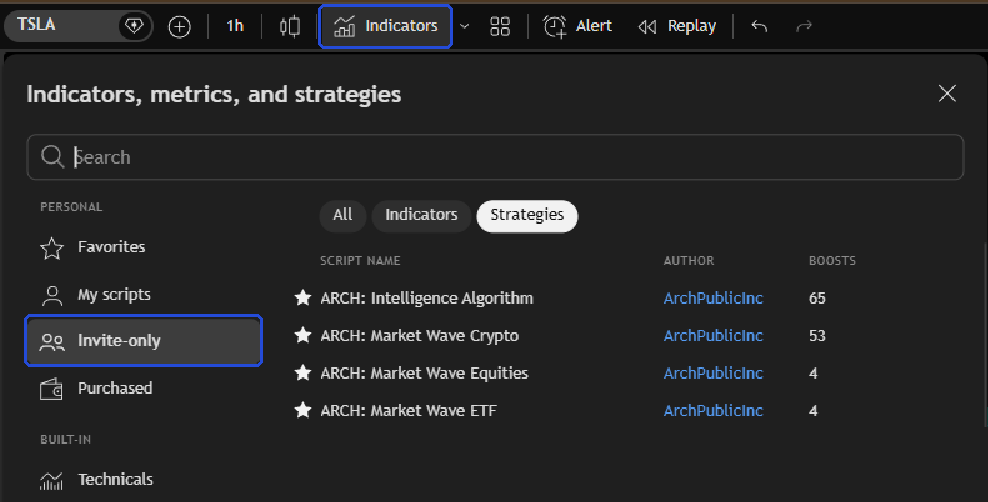
1. Select Indicators > Invite Only.
2. This is where you will add the main Bitcoin Algorithms to your chart. Click the algorithm(s) you would like to add to your chart. You will see them appear on your chart.
Please allow for up to 24 hours after adding your TradingView username to the Arch Public Client Portal. You will need to refresh TradingView in your browser to see recently added algorithms in the “Invite-only” section.
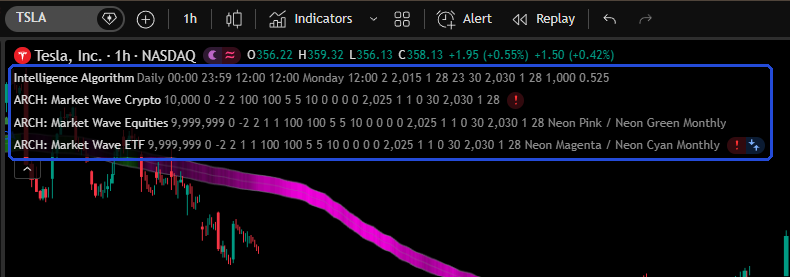
You will see the algorithms you’ve selected appear on the chart.
Display only one algorithm at a time when performing analysis and setting changes. To do so, click the eyeball icon next to the algorithm’s name on the chart. Notice that the visible algorithm has a clear eyeball while the invisible algorithm has a cross through the eyeball.
The main functions you will use are the algorithm settings menu (gear icon), Strategy Tester, and timeframes.
Timeframes change the period on which the algorithms function, therefore significantly effecting the performance of any given set of algorithm parameters. When setting up an instance, ensure that you are on the timeframe you desire for that instance.
## Setup Complete! What Next?
\
\
The Market Wave Algorithms are designed to take advantage of market volatility. They can be tuned to accumulate, generate a cash, sell off an existing position, or a blend of all three.
[MArket Wave Algorithm Guide](/crypto/market-wave-algorithm-guide.md)\
\
The Intelligence Algorithm is a buy-only tool designed to accumulate cryptocurrency at the most opportune prices and excels at building a strong foundation in any cryptocurrency.
[Intelligence Algorithm Guide](/crypto/intelligence-algorithm-guide.md)
## Navigating TradingView
TradingView is a comprehensive trading platform and we understand it can be daunting at first glance. For questions related to using TradingView, it's best to ask their support AI as you get up and running.
---
# Agent Instructions
This documentation is published with GitBook. GitBook is the documentation platform designed so that both humans and AI agents can read, navigate, and reason over technical content effectively. Learn more at gitbook.com.
## Querying This Documentation
If you need additional information that is not directly available in this page, you can query the documentation by asking a question.
Perform an HTTP GET request on the following URL with the `ask` and `goal` query parameters:
```
GET https://docs.archpublic.com/crypto/arch-public-algorithm-setup-guide-start-here.md?ask=&goal=
```
`ask` is the immediate question: it should be specific, self-contained, and written in natural language.
`goal` is what the user is ultimately trying to achieve, the reason they need the answer. Sharing it helps GitBook give you a better, more relevant answer. A goal is most helpful when it describes the outcome the user wants rather than restating the question. For example, with `ask=how do I create an API token`, a goal like `automate deployments from our CI pipeline` lets GitBook tailor the answer to that use case.
The response will contain a direct answer to the question and relevant excerpts and sources from the documentation.
Use this mechanism when the answer is not explicitly present in the current page, you need clarification or additional context, or you want to retrieve related documentation sections.